Start a New HTML Project in GitHub with VSCode
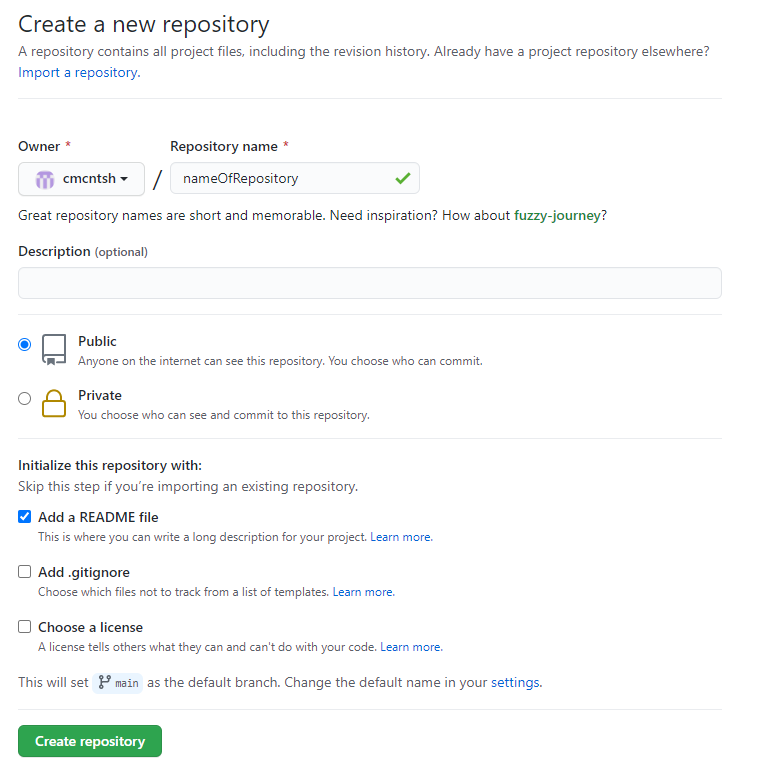
1. Create a new repository in GitHub.
- GitHub - Repositories - New
- Name your repository
- Make the repository public (to be able to use GitHub Pages later)
- Add a README file
2. Clone your new repository with VSCode
- GitHub - Navigate to your repository - Code - Clone - Click on the clipboard icon to copy the path for your repository
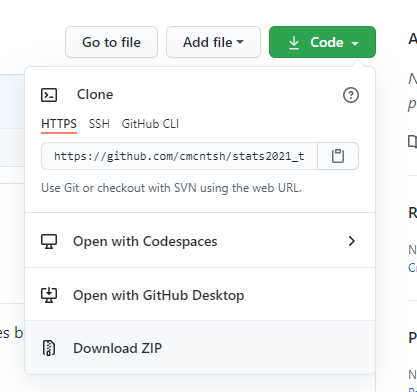
- VSCode - View - Command palette… - Git:Clone - paste the path into the dialog box - Enter - Navigate to where you want repository - Select Repository Location - Open
3. Add files to your project with VSCode
- Add index.html, style.css, script.js files for a basic project.
- Hover over the name of your new repository and select New File from the options that appear next to the name.
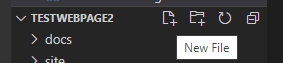
- Type out the complete name of the new file, including the file extension. Repeat this for each file.
- index.html
- style.css
- script.js
- Add the following code to your .html file to include the .css and .js files in the page.
<!DOCTYPE html>
<html lang="en">
<head>
    <meta charset="UTF-8">
    <meta http-equiv="X-UA-Compatible" content="IE=edge">
    <meta name="viewport" content="width=device-width, initial-scale=1.0">
    <link rel="stylesheet" href="style.css">
    <title>Document</title>
</head>
<body>

    <script src="script.js"></script>
</body>
</html>
4. Push your changes to GitHub
- VSCode - Click on the Source Control icon on the left

- Enter a commit message in the Message field right under the SOURCE CONTROL heading.
- Something like “First Commit” or “Add Files” should be fine.
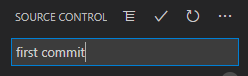
- Click on the Commit checkmark next to the SOURCE CONTROL heading.

- Click on the three dots next to the SOURCE CONTROL heading for Views and More Actions.
- Select Pull, Push - Sync
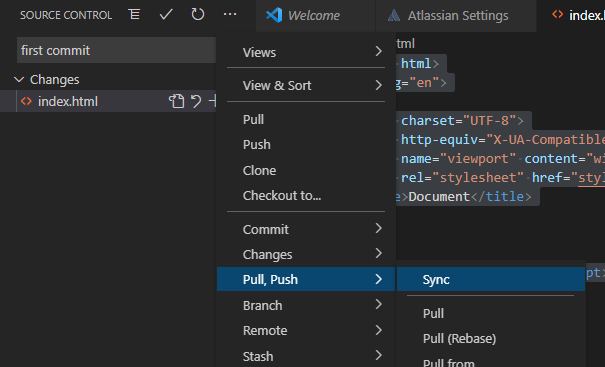
- Give the application a few seconds to do its work.
- This will pull any new items from your GitHub repository and push any new changes you made to your remote repository.
5. Turn on GitHub Pages
The .html file can be viewed as a web page when the file is named index.html and GitHub Pages is turned on.
- GitHub - Navigate to your repository - Settings - GitHub Pages - Source - Select Branch - Main - Save
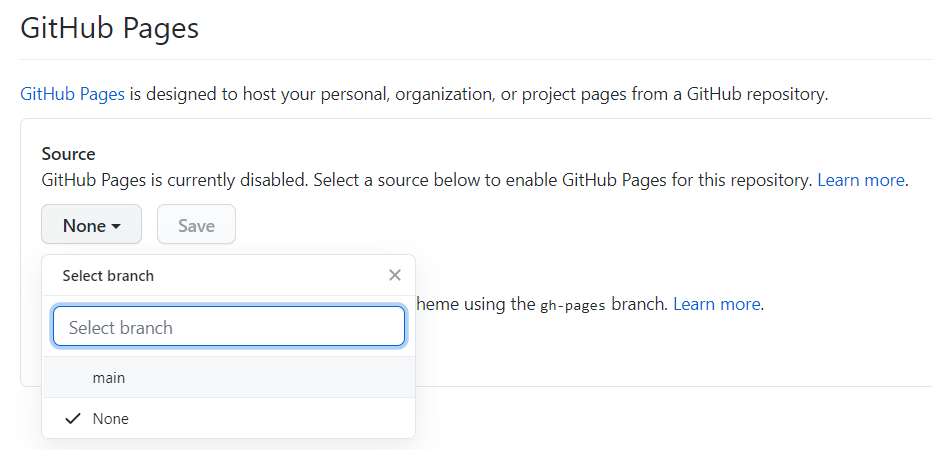
- Once you save, you’ll be shown a link where you can view your new web page.

The index file can be an .html file or a .md file. (.md files are usually used when you use GitHub’s template system Jekyll.) index.md will be displayed by default over index.html if both are present.